MANUAL / START HERE
Go live with a show you can trust.
ViXL is structured so the live state is deliberate. Create a reusable Scene, compose it in stable layers, pin that target to a Cue, then prepare it before you take it live.
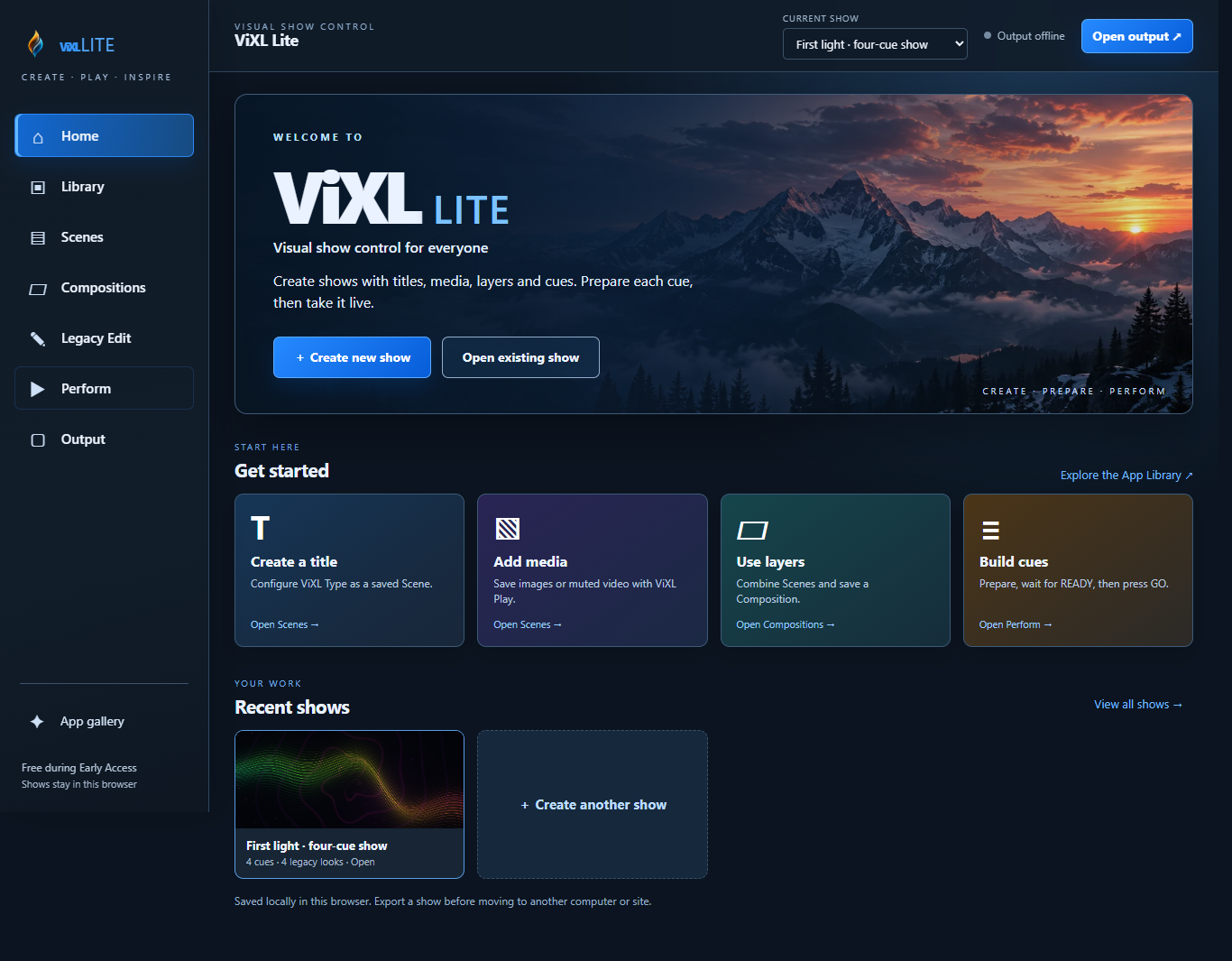
Your first show
- 1
Open or create a Show
A Show owns its saved work: Scenes, Compositions, Cues, media references, and persistent layer slots. Save early so the show has a stable identity.
- 2
Install an App and make a Scene
An App is a reusable capability. A Scene is one configured App instance with its own saved state. Configure the App, name the Scene, and save it.
- 3
Build a Composition
Add named layers, assign your saved Scenes, and choose their target actions. Layers retain stable identities across composition recall; the Composition holds their ordered target state.
- 4
Create a Cue
Pin a Composition to a Cue and set its transition behavior. Editing the Composition later should not silently change a pinned live Cue.
How to load an App
Release status, 23 September 2026: These steps were verified on the staged ViXL Lite beta. The public ViXL Lite site and App Shop have not yet been promoted to this install flow. Use the beta only for testing, not an unverified public show.
- 1
Choose the App and check its version
In the beta, open the App Library from Lite. Check the App name, exact version, and whether the card says it is available to install. The Shop is for discovering Apps; the trusted installation belongs on the Lite runtime, not a separate Shop player.
- 2
Install in ViXL Lite
Select Install in ViXL Lite. Lite downloads and verifies the trusted package, then stores the installation in this browser on the Lite site. Wait for Installed in this browser; if verification fails, nothing is installed.
- 3
Create and save a Scene
Choose Create Scene, configure the App's controls, name the Scene, and save it. Installing an App adds a capability; it does not automatically put anything on Program or create a finished show.
- 4
Use it in a Composition and Cue
Assign the Scene to a named layer in a Composition, save the target, then pin it to a Cue. In Perform, select the Cue, wait for READY, and press GO. Check the audience Output separately.
Apps and Shows are browser-and-site-local in this beta. Export a Show before changing browser or device, and confirm its exact pinned App versions are installed when you reopen it. An exported Show is not a substitute for the App package.
How Apps extend ViXL
Core owns the Show, Composition, Cue, readiness, transitions, Program, and Output. An installed App adds a particular capability inside that structure. Configure the App as a Scene; reuse or combine Scenes in named layers without changing the operating rules for every new visual tool.
- Content
- Generate a visual source, such as a sky background. Sky Builder is an example in the staged browser library.
- Graphics & media
- Add titles, lower thirds, images, or supported browser media. ViXL Type and ViXL Play illustrate these roles in the staged browser library.
- Input & utility
- Bring permitted browser-visible input into a show or run display checks. ViXL Input and ViXL Test illustrate these roles; device permissions and output behavior still require rehearsal.
- Other roles
- The App architecture also includes interactive, control, information, processing, transition, output, and utility/data roles; one package may serve more than one role. A supported role is not a claim that a particular App or native output feature is published today.
Use the App reference to understand categories, then verify the exact released listing and compatibility before depending on an App. Never assume a candidate on staging is available in the public Shop.
Prepare before GO
Selecting a Cue does not change Program. Preparation resolves the Cue’s target Composition and asks the system to load and warm what changed. Only take the Cue when the status is READY.
A Cut and a Dissolve are valid core transitions. A transition never makes an unprepared target safe; the target must be READY first.
The show objects
- App
- A versioned, reusable show capability. It can be content, interactive, control, information, processing, transition, output, utility/data, or more than one role.
- Scene
- One configured App instance with a stable identity and saved state. It does not own the global layer stack.
- Composition
- A self-contained target visual state: ordered named layers, Scene assignments, per-layer target actions, and related configuration. A Cue pins the Composition revision it intends to recall.
- Cue
- A pinned Composition reference plus execution behavior, such as notes, hold, next action, and transition settings.
- Program
- The authoritative live composition. Preparing a future Cue must not mutate it.
- Output
- The audience destination controlled by the Core-owned Output Router. Apps do not route physical outputs or switch Program.
Readiness and safety
Heavy content must report its state, so an operator is not guessing when a visual is available. The baseline states are:
For each persistent layer, recalling a Composition reconciles current Program with the target. The action can be KEEP, UPDATE, REPLACE, CLEAR, or IGNORE. This avoids unnecessary reloads and protects costly live instances.
Output and recovery
Output owns audience destinations and reports their status. If preparation fails, maintain the known Program state rather than taking a partial target. Blackout and Restore are explicit emergency controls; use them as show actions, not as a substitute for preparation.